A DESKTOP SWITCHER FOR MAC
Your screens.
Back together.
Move from development to review, then back to where you left off. Save the desktops you use across your displays as one setup. Choose it to switch those displays together.
macOS 14+ · Apple silicon · Free & open source

LESS FINDING. MORE DOING.
Your plan, your code, your review. In the right place.
A browser on one display. Your editor on another. A review waiting on a different desktop. Sideby remembers which desktops belong together, so you can return to the setup you need.
- Save the setup you're already using.
- Switch its included displays together.
- Keep the desktops and apps you have open.
01 / How it works
Save a Mac desktop setup. Come back to it.
Start with the desktops you already use. One useful setup is enough.
Work as usual.
Open the apps and documents you need on each display. Use Mission Control to prepare another desktop when you need one.
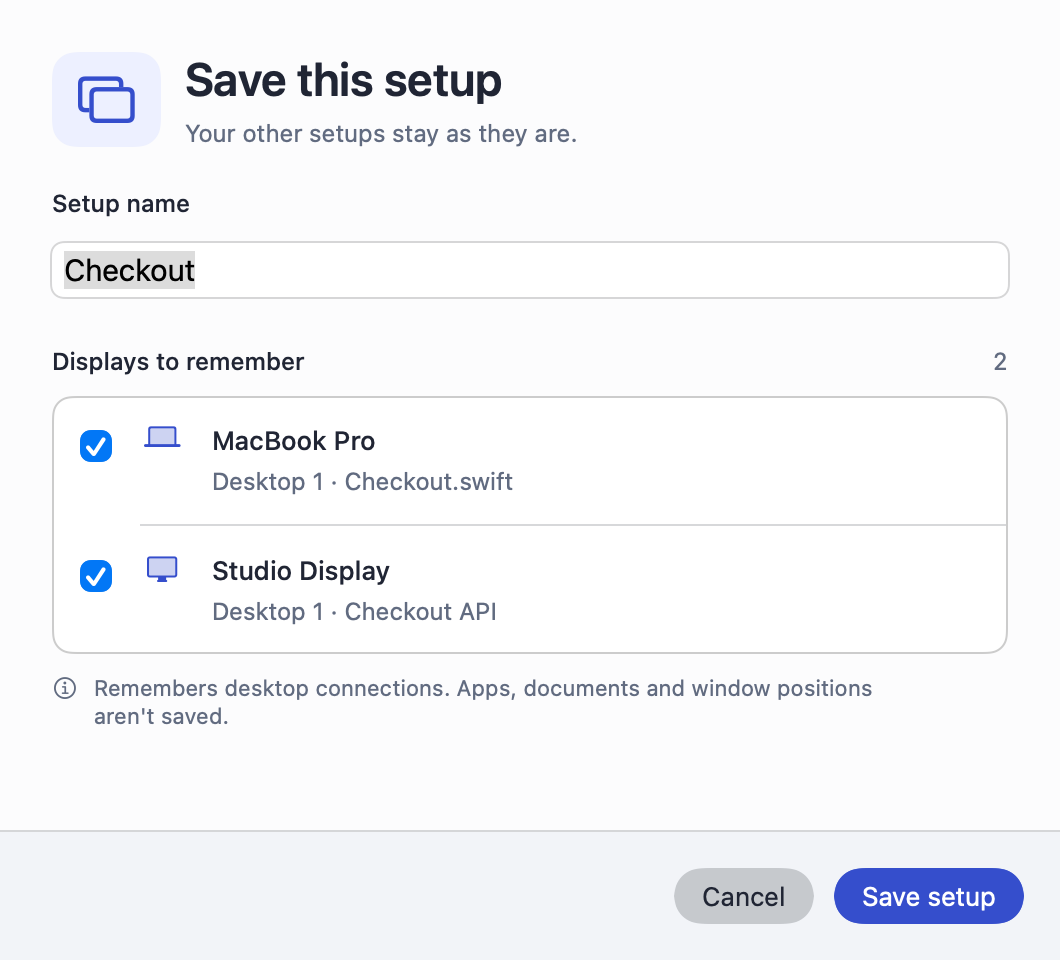
Save this setup.
Hold ⌥⇧Space and choose Save this setup. Release the keys, give it a name, check which displays to remember, and save.
Pick up where you left off.
Choose a saved setup to switch its displays together. Press ⌥⇧Tab to return to the previous setup.
02 / YOUR SETUPS, AT A GLANCE
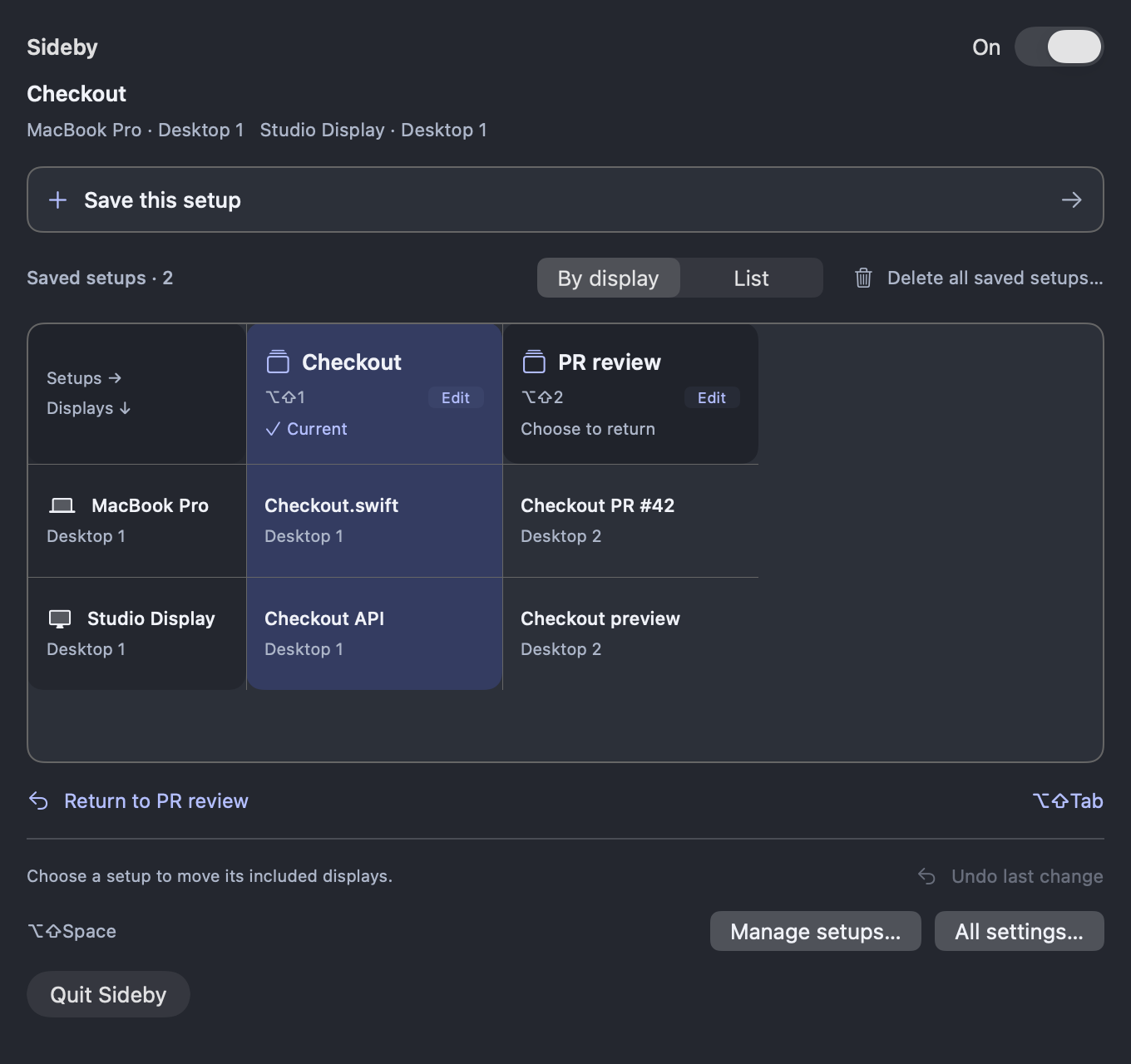
Choose a setup. Every included screen follows.
Open the matrix near your pointer with ⌥⇧Space. Columns are your saved setups; rows are the displays connected right now. Use the compact list if you prefer choosing by name.
One display works, too.
Switch between the desktops on your MacBook, or include an external display when you connect it.
Room to change your mind.
Edit one setup at a time. Undo the last addition, edit, or deletion—even after restarting the app.
At home on your Mac.
A native menu-bar app with keyboard shortcuts and an interface that follows light and dark appearance.
03 / Questions
A few things to know.
What does Sideby save?
Sideby remembers connections to existing macOS desktops, also called Spaces. A setup groups the desktops you want to use together across one or more displays.
Does it restore window positions or reopen apps?
No. Sideby switches existing desktops. It does not reopen apps or documents, move windows into a layout, or save screenshots. Leave the apps you need open on their desktops.
What happens when I unplug a monitor?
Disconnected displays disappear from the everyday matrix. Their saved connections stay available in setup editing and return when the display reconnects.
Which Macs can run it?
The current download supports Apple silicon Macs running macOS 14 or later. Download the DMG, move Sideby to Applications, and follow the first-run guide.
What permissions does it need?
Accessibility supports configured global gestures and available app or window-title suggestions. Screen Switching access enables desktop commands; some paths also require System Events Automation. Desktop discovery and switching do not request Screen Recording permission.
Is Sideby free? Where is my setup stored?
Sideby is free and open source under the MIT License. Saved setups and preferences stay locally on your Mac. The app uses Sparkle for updates, with user-approved installation.
SIDEBY FOR MAC
Make it easy to come back.
Save one setup today. Add another when you need it.
Download freemacOS 14+ · Apple silicon · Free & open source